


VLLO - Video Editor Vlog Edits
3.84.69K Reviews
App Specs
- Version
- 13.5.0
- Updated On
- License
- Free
- Downloads
- 10,000,000+
- Developer
- vimosoft
- Categories
- Video Players & Editors
- Platform
- Android, iOS
Screenshots
 Analysis by AppCompare
When I plan a short video, I want the editing to feel like a manageable part of the idea, not a second job. VLLO - Video Editor Vlog Edits is a mobile video editor from vimosoft that aims for that balance: it gives me room to shape clips with effects, filters, captions, transitions, text, mosaic, and slow motion without making the starting point feel like a technical project. It is free to install, with optional in-app purchases, and its 3.9 average from around 141,000 ratings suggests that many people find it useful, though it is not a perfect fit for every workflow.
A practical place to begin
I would reach for VLLO when I have footage already on my phone and a clear, modest goal: turn a few clips into a travel recap, explain something on camera, or make a quick video for friends. It is especially approachable if you have never used a timeline editor. Instead of needing to learn a desktop-style workspace before doing anything, you can start with a clip and build from there.
A small planning habit makes a noticeable difference: decide what the viewer needs to understand before you add decoration. For a short café visit, for example, I might keep one establishing shot, a close-up, and a brief reaction, then use a caption to identify the place. That order keeps effects and text in service of the story rather than turning the edit into a collection of unrelated flourishes.
Getting Started with VLLO
First things first, downloading VLLO - Video Editor Vlog Edits is a breeze. It's available for both Android and iOS, so no one's left out of the fun. Once installed, the app welcomes you with a clean, user-friendly interface that doesn’t overwhelm you with options, which is a relief if you're a beginner like me.
As soon as you open the app, you can jump right into creating your masterpiece. I started with a simple video from a recent trip, and boy, was I surprised! The app offers a plethora of features, yet it doesn't feel cluttered. It's like having a mini editing studio in your pocket.
Features that Stand Out
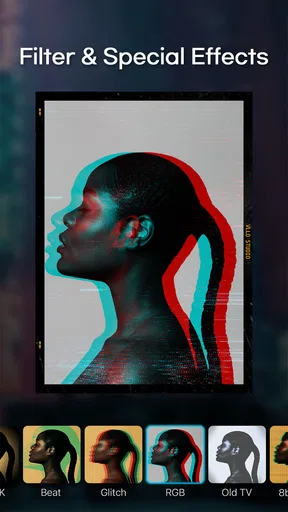
One of the first things I noticed is the range of filters and effects. Whether you want a vintage look or something more modern and vibrant, VLLO has got you covered. The filters are easy to apply, and you can adjust the intensity to get just the right vibe.
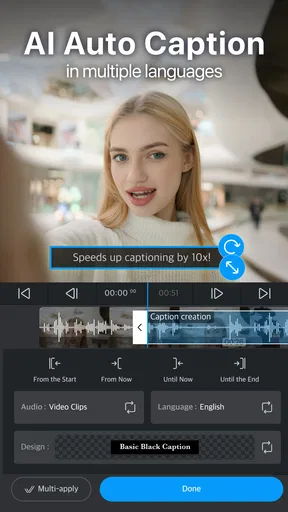
But wait, there’s more! The text tool is incredibly versatile. You can add titles, captions, and even just fun annotations throughout your video. The font selection is quite impressive, offering everything from sleek and professional to quirky and fun. Plus, you can animate the text, giving your video that extra bit of flair.
Worth Reading Before You Choose

EA SPORTS FC Mobile 26 Is a Bigger Football Game, but It Takes Time

Flipboard Shows What News Apps Must Do Beyond the Feed

Switching to Android Auto Means Rethinking Your Driving Routine

Google Calendar Makes a Crowded Week Easier to Manage

Ludo King Makes the Most of the Minutes Between Plans

Baby Panda World Brings Quick Play to Modern Phones, but Its Game Library Feels Busy
Making a first edit feel coherent
My useful rule with filters is to treat them as a finishing pass, not a fix for every shot. If the clips were filmed in very different lighting, applying one look across the edit can make them feel more connected, but pushing the effect too far can make skin tones or bright details look unnatural. I would compare a couple of moments from the beginning and end before committing to a strong style.
Captions work best when they solve a real viewing problem. In a how-to clip, I would put the key instruction beside the moment it matters rather than leaving a long block of text on screen. For a personal vlog, a brief place name or date can orient the viewer without competing with the footage. Keeping each caption short also makes it easier to check that it remains readable against changing backgrounds.
Audio choices that support the footage
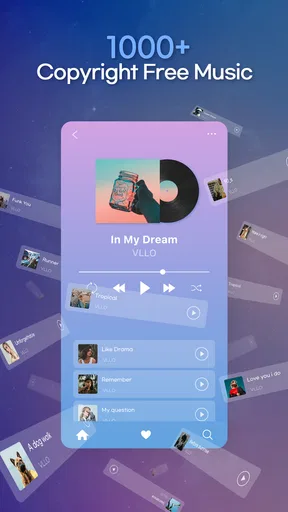
No video is complete without the right soundtrack, right? VLLO doesn’t disappoint here. The app includes a wide selection of music tracks and sound effects that are free to use. You can even import your own music if you have a specific tune in mind. Adjusting the audio levels is straightforward, which is a big plus for ensuring your voiceovers or background music don’t overpower each other.
For a practical edit, I would listen once with headphones before exporting. A soundtrack that feels subtle while you are editing can bury spoken words when played through a phone speaker. If the video contains a voiceover, I would give the narration priority and use music as support; if it is a silent visual montage, the music can carry more of the pacing. This quick check is more useful than adding extra effects when the basic mix is not clear.
Music and Sound Effects
No video is complete without the right soundtrack, right? VLLO doesn’t disappoint here. The app includes a wide selection of music tracks and sound effects that are free to use. You can even import your own music if you have a specific tune in mind. Adjusting the audio levels is straightforward, which is a big plus for ensuring your voiceovers or background music don’t overpower each other.
Advanced Editing Tools
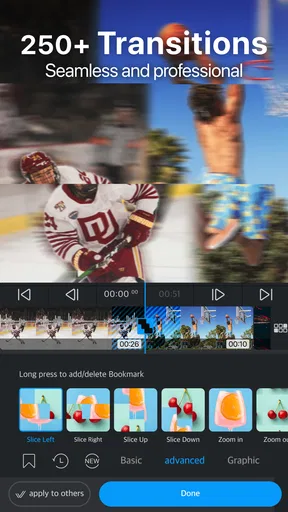
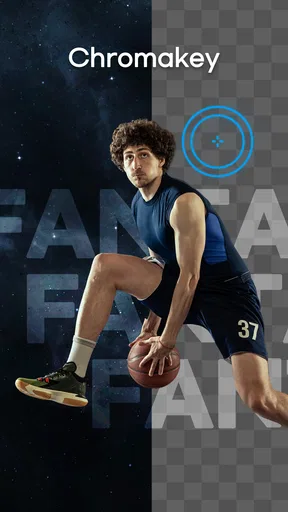
For those who want to dive deeper, VLLO offers more advanced tools like keyframe animations and chroma key for green screen effects. I played around with the keyframe tool, and it’s surprisingly intuitive. You can create smooth transitions and zoom effects that give your video a professional touch.
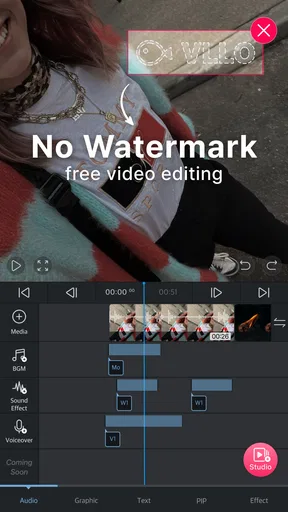
The multi-layer timeline is another feature that deserves a mention. It allows you to manage multiple clips and layers of text, images, and audio with ease. This is where VLLO shines in comparison to other mobile editors, offering a level of control that’s usually reserved for desktop software.
Iteration without losing the story
Layers and keyframes are most useful when they clarify a change over time: a gentle zoom toward a detail, a label that follows the moment it describes, or a transition that links two related shots. I would keep a copy of the original footage untouched and make one deliberate pass at a time. That makes it easier to back away from an idea that looked clever in isolation but distracts when the full sequence plays.
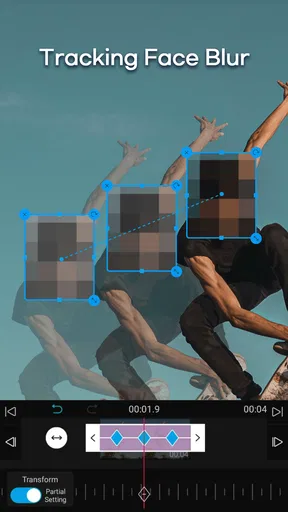
Mosaic can also be a purposeful editing choice rather than decoration. If a passing face, sign, or screen detail should not draw attention, a mosaic can help keep the focus on the subject of the clip. I would preview the whole section to see whether the covered area remains where it needs to be as the shot changes; a privacy treatment that slips out of place can be worse than leaving the clip out.
Compared with a basic trim-and-filter editor, VLLO is more appealing when I want several kinds of material on the same timeline, such as footage, captions, and music. Compared with a desktop editor, its strength is the convenience of working on a phone; a longer project with many revisions is still easier to organize on a larger screen. For an occasional creator, that trade-off is sensible. For someone delivering complex, tightly controlled work, mobile editing may become the bottleneck.
Advanced Editing Tools
For those who want to dive deeper, VLLO offers more advanced tools like keyframe animations and chroma key for green screen effects. I played around with the keyframe tool, and it’s surprisingly intuitive. You can create smooth transitions and zoom effects that give your video a professional touch.
The multi-layer timeline is another feature that deserves a mention. It allows you to manage multiple clips and layers of text, images, and audio with ease. This is where VLLO shines in comparison to other mobile editors, offering a level of control that’s usually reserved for desktop software.
Exporting and Sharing
Once you’ve crafted your masterpiece, exporting is simple. You can choose from various resolutions, including 4K, which is perfect for those high-quality uploads. Sharing directly to social media platforms is seamless, saving you time and hassle.
Before handing a video off, I would watch the exported file from beginning to end rather than trusting the editing preview alone. That catches a title that appears too briefly, an awkward pause, or music that feels louder than intended. I would also make the opening seconds do useful work: a clear first image and a short caption can help a viewer understand why to keep watching.
For a realistic everyday workflow, imagine filming a few moments on the way home from a weekend outing. I would choose only the clips that move the story forward, arrange them in a simple sequence, add one or two location captions, and use a restrained transition where the scene changes. After balancing the sound, I would export a version for sharing and review it on the same kind of screen where friends are likely to watch. That keeps the edit focused and avoids spending time polishing footage that does not need to be there.
What to expect before choosing it
VLLO is aimed at a broad audience: its content rating is Everyone, and it has passed 10 million installs. It is free to begin using, while in-app purchases range from $0.99 to $69.99 per item. I would treat the free starting point as a way to learn whether the editing flow suits me, then check the purchase details in the app before paying for anything. The current version is 12.14.2, and the minimum operating-system requirement is 8.1.
The main friction is not that the app lacks creative options; it is deciding how many of them a particular video actually needs. A beginner can lose time browsing effects instead of making a clean cut, while someone with a demanding production may want finer project management and a larger editing surface. If speed and a simple finish matter more than layers, a basic editor may be enough. If precise, long-form post-production is the priority, I would use a desktop tool instead.
For a creator who wants to shape short videos directly on a phone, the mix of captions, effects, transitions, slow motion, and layered editing gives VLLO useful room to grow into. It comes from vimosoft and sits in the video editing category, with a 3.9 average across around 4,700 written reviews. I see it as a practical middle ground: more flexible than a bare-bones trimmer, yet less suited to intricate work than a full desktop setup.
Exporting and Sharing
Once you’ve crafted your masterpiece, exporting is simple. You can choose from various resolutions, including 4K, which is perfect for those high-quality uploads. Sharing directly to social media platforms is seamless, saving you time and hassle.
The app also offers a premium subscription, which unlocks additional features and removes ads. If you find yourself using VLLO frequently, the premium version is worth considering. The subscription is reasonably priced, especially given the array of features it unlocks.
Final Thoughts
All in all, VLLO is a fantastic tool for anyone looking to dip their toes into video editing. Whether you’re a vlogging newbie or a seasoned pro, this app has something to offer. Its user-friendly design, coupled with powerful editing tools, makes it a standout choice in the crowded world of mobile video editors.
So, if you're ready to take your videos to the next level, give VLLO a try. You might just find it's the app you've been waiting for!
Pros
- User-friendly interface
- great for beginners.
- Wide range of editing tools available.
- No watermark on exported videos.
- Supports 4K video editing.
- Affordable premium features.
Cons
- Limited advanced features for pros.
- Occasional app crashes reported.
- Some features are premium-only.
- Ads can be intrusive for free users.
- Limited music library options.
FAQs for VLLO - Video Editor Vlog Edits
What are the key features of VLLO - Video Editor Vlog Edits?
VLLO offers a comprehensive suite of video editing tools perfect for vloggers. It includes features like multi-track editing, transitions, text overlays, filters, and music. The app also provides a user-friendly interface with drag-and-drop functionality, making it accessible for beginners while offering advanced options for seasoned editors.
Is VLLO free to use, or does it require a subscription?
VLLO is available for free with basic features, but to access premium tools and remove watermarks, you may need a subscription. The app offers various subscription plans, including monthly and yearly options, which provide full access to all features and content without any limitations.
Can I use VLLO on both Android and iOS devices?
Yes, VLLO is available for both Android and iOS platforms. The app is optimized for a seamless experience on both operating systems, ensuring that users can enjoy the same features and functionality whether they are using an Android device or an iPhone.
Does VLLO support 4K video editing and export?
VLLO does support 4K video editing and export, making it suitable for high-resolution projects. This feature is particularly beneficial for vloggers and content creators who wish to maintain top quality in their videos. However, 4K export may require a premium subscription.
How beginner-friendly is the VLLO app for new users?
VLLO is designed to be extremely user-friendly for beginners. It features an intuitive interface with easy-to-use tools and tutorials that guide new users through the editing process. The app’s straightforward design allows users to quickly grasp basic editing techniques and create professional-looking videos with minimal effort.


